Paste your order CSV and get new customers, cancellations, and next month’s subscription sales
Subscription Order Report Template
An Excel template that puts your monthly report numbers together from pasted CSVs. Paste your cart’s order and subscription CSVs, and active subscriptions, cancellation rate, new customers, retention, and next month’s expected subscription sales line up for 12 months on one sheet. No macros or scripts.
The template’s sheets and the screen below are in Japanese.
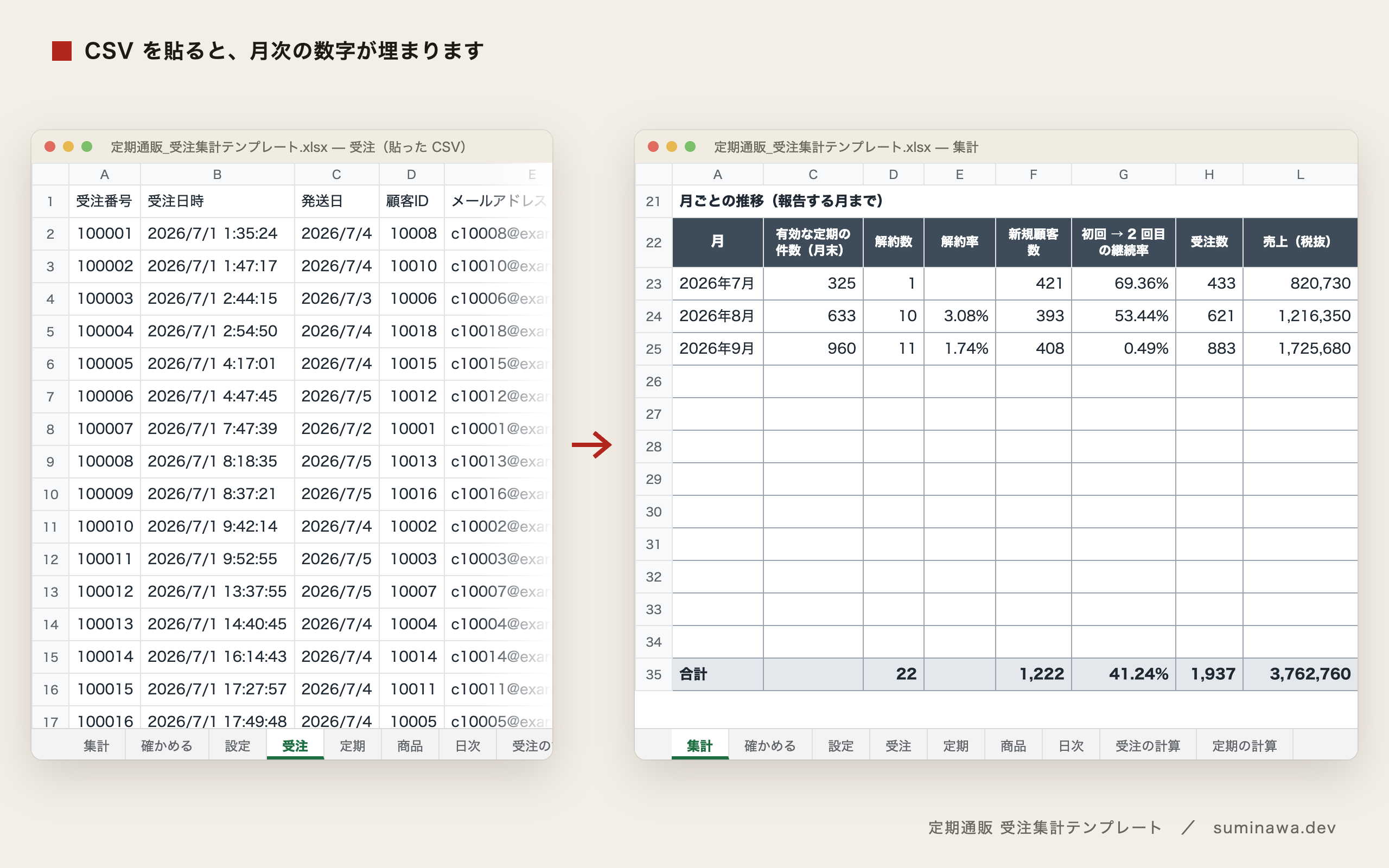
The numbers you get
The summary sheet lists the following numbers for each of 12 months. At the top are the figures for the reporting month and the change from the previous month. Daily orders, shipments, new customers, and sales are on a separate daily sheet.
- Active subscriptions (start and end of month)
- Cancellations and cancellation rate (cancellations ÷ active at start of month)
- New customers and first-to-second order retention
- Orders, completed shipments, average items per order, average order value
- Sales, shipping, and fees (before tax), plus payment fees
- Next month’s expected subscription sales (active subscriptions whose next delivery falls next month)
The standard edition handles up to 10,000 order rows and 3,000 subscription rows; the large edition up to 30,000 and 8,000. Both are in the same zip. No customer CSV is needed. It uses only functions available in Excel 2019 and later, and was verified in Microsoft 365 Excel.
- 17,144 cellsCalculated in Microsoft 365 Excel across 10 settings and checked against a separately written Python calculation. Zero differences.
- ~2,000 rowsOrder rows in the included sample data (three months of a fictional shop). Paste it and the numbers appear.
- 10–15 sTypical time to open the standard edition (up to 10,000 order rows), measured in Microsoft 365 Excel for Mac. The large edition takes about 30 seconds.
- 0Macros and scripts. It is built from formulas only, and every formula is visible. No permission prompts.
Who it’s for, and who it isn’t
A good fit if you
- Handle the books for a subscription online store and build the monthly numbers by hand in Excel from your cart’s order and subscription CSVs
- Want to report active subscriptions, cancellation rate, first-to-second order retention, and next month’s expected subscription sales in the same format every month
- Cannot run macros or scripts on your work computer (it uses formulas only)
- Would rather not fit it to your CSV yourself (we can do it for you; see Price below)
Not the right fit if you
- Run a store that sells single items only, with no subscriptions (the free version, with orders, sales, and shipping by month, is enough)
- Sell in a shop or through handmade marketplaces without a cart order CSV
- Want to use it in Google Sheets (it is made for Excel for now; it has not been checked in Google Sheets)
- Have many Shopify orders with two or more products (it counts one row as one order)
Compared with other options
| Type | Name | Cost | What it does / how it differs |
|---|---|---|---|
| Built-in feature | Shopify Analytics | Included in Shopify plans (cohorts and forecasts from Advanced) | Sales and customer counts are in the admin. Cancellation rate and next month’s expected subscription sales from next delivery dates are not on the standard screens. |
| Cart admin | BASE customer management, etc. | ¥0 (a cart feature) | Filters customers by number of purchases and last purchase date. Carts do not offer cancellation rate and next month’s expected subscription sales on one sheet as standard. |
| Build it yourself | Excel pivot tables, ChatGPT | ¥0 (but you build it) | If you can build pivot tables, you can make your own. You decide order date versus ship date, tax, and rounding, and check the results yourself. ChatGPT cannot take a 10,000-row CSV. |
| This kit | Subscription Order Report Template | ¥2,980(tax included, one-time purchase) | Paste the order and subscription CSVs to get active subscriptions, cancellation rate, new customers, retention, and next month’s expected subscription sales for 12 months on one sheet. Order or ship date, tax, and rounding are settings, and a check sheet flags pasting mistakes. |
If a free tool covers your needs, we recommend using it.
Features and costs of the other options were checked on each vendor’s site on Oct 21, 2026.
Price
- Kit only (you install it)
- ¥2,980(tax included, one-time purchase) Buy on BOOTH
- Setup done for you
- From ¥8,480 in total (tax incl.)Kit ¥2,980 + setup from ¥5,500 (¥5,000 before tax)Request setup (contact page)
- Free version
- ¥0 Get the free version (BOOTH)
Receipts and invoices
We are not a registered qualified invoice issuer under Japan’s invoice system, so BOOTH does not issue a receipt for this shop (BOOTH issues receipts only for registered issuers). For your records, use BOOTH’s order confirmation email and your payment statement (for example, your card statement). The purchase does not qualify for a consumption tax input credit.
Where people usually get stuck
Five steps (about 10 minutes)
First-time users can start with these five steps. Each month after that, you just paste new CSVs and change the reporting month.
- Paste the order CSV at A1 of the orders sheet and the subscription CSV at A1 of the subscriptions sheet. On the products sheet, enter product name, units per item, and subscription price.
- On the settings sheet, pick the matching header of your CSV for each field from the dropdown. You’re done when every status reads OK.
- Assign a category to each order and subscription status wording (such as “shipped” or “cancelled”), and set the payment fee table to your contracted rates.
- Enter the first day of the start month and of the reporting month. Date basis, tax, and rounding are chosen here too.
- You’re finished when the check sheet says everything is OK. For any row needing attention, follow the fix shown on that row.
If you paste the sample data, steps 2–4 can be skipped and the numbers appear as is. We recommend trying the sample first, then switching to your own CSV.
When every number is 0
It is almost always one of these three. The check sheet shows counts, so look from the top.
- The start month or reporting month in the settings doesn’t match the CSV’s period (the out-of-period order count will be large).
- A header mapping says “not found” (re-pasting a CSV can change its headers).
- Dates are stored as text. Select the date column and choose Data → Text to Columns → Finish to turn them into dates.
If it is none of these, send us a screenshot of the check sheet. Help choosing which headers to pick is free.
Try it, or have it done
Before buying, you can check that your own CSV columns fit. A free version, “定期通販 受注集計テンプレート 無料版”, gives orders, sales, and shipping by month and uses the same column selection as the paid version. It’s on BOOTH (the page is in Japanese).
We can also fit the template to your own CSV. The price is shown as “Setup done for you” under Price above.
You can also order it on Coconala: “定期通販の受注CSVを月次集計の表に差し込みます” (template included, ¥8,500; the page is in Japanese).
If you’re not sure which columns to pick, send the first row (headers) and rows 2–3 of your CSV to hello@suminawa.dev, free of charge. Please delete or mask the name, address, phone, and email columns before sending.
Subscription Order Report Template ── note / BOOTH
Purchases are made in Japanese on BOOTH or note, and priced in Japanese yen.
For 14 days after purchase, if it does not work by following the guide, we will work through the setup with you by email. As these are digital products, returns and refunds are not accepted.